Anime Dice How to Trade: the Two-Column Trade Window, Frame by Frame
Anime Dice trading read frame by frame: a two-player window with Ready per side, then Accept, Confirming, Saving and a Completed toast. No prices, no value list.
Perguntas frequentes
How do you trade in Anime Dice?
Where do you trade in Anime Dice?
What are the buttons at the bottom of the Anime Dice trade window?
Does the Anime Dice trade window show what a unit is worth?
What happens after both players press Ready in Anime Dice?
Can you trade gears in Anime Dice?
How Do You Trade in Anime Dice?
Two players, one window, and both of them have to press the button twice. Trading in Anime Dice is a player-to-player window that opens between two accounts in the same hub server: each side’s offer sits in one half of a two-column panel, each side marks itself Ready, and once both are ready the pair confirms with Accept. There is no shop, no market board, no price list and no trade-value field anywhere in it.
The whole surface of the feature is small enough to print as a table, and every string in it was read at native 1920×1080 off the frames linked below:
| As printed | What our frames show |
|---|---|
Ops / Vantablue in the title bar | the two players in the trade, one name over each half, each with their avatar beside it |
| a three-wide tile grid (left half) | one side’s offer — unit cards and stacked item tiles, scrollable, holding more rows than fit |
| a large panel with one tile (right half) | the other side’s offer in our recording — a single tile in an otherwise empty half |
Ready (green) | your own ready action, and the state a half shows once that player has pressed it |
Accept (green) | the confirm, printed only after both halves are marked Ready |
Decline (red) | printed beside the green button at every stage we captured |
0s, Confirming, Saving... | the sequence that runs after Accept |
Completed (in the world) | the completion line, printed under your character as the window closes |
Where Is the TRADE Booth in the Hub?
In the hub, the shared beach area the yellow Hub button opens. The hub carries the game’s world signage in a row of floating signs, and one of them reads TRADE, standing between TRAITS and GRADES and hanging over a small stall with an orange and white striped awning.
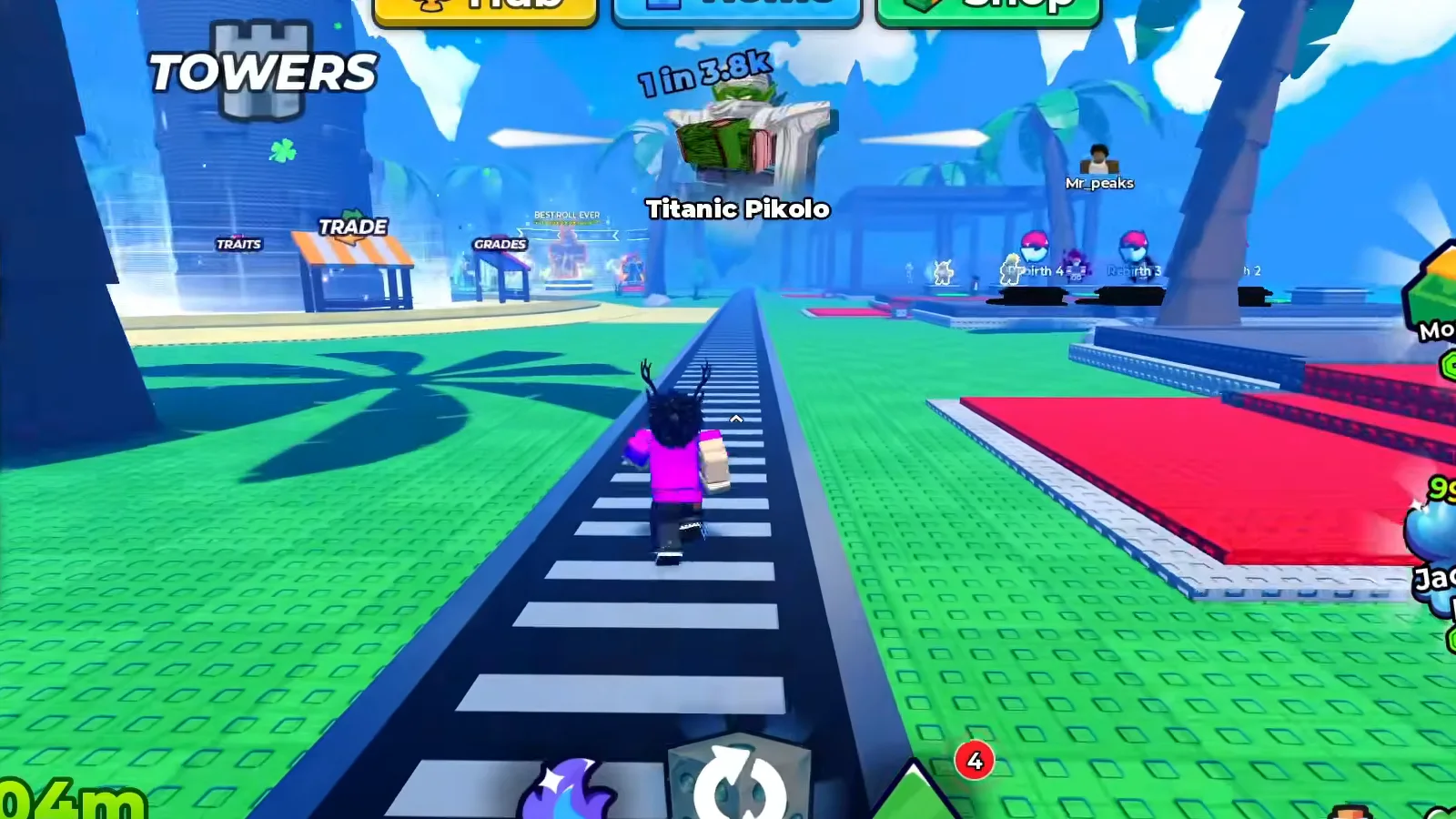
The hub does not label this as a menu or a button. It labels it the way it labels every other place in the hub: a sign over a structure, from TOWERS at the far left to BEST ROLL EVER at the right.
The sign is worth pinning down because it is the thing every “sell guide” written for this search term skips: the row of signs is the map, and TRADE is a place in that row. The stall’s neighbours are documented on this site — the quests and tickets page reads the QUESTS stall a few metres away and its own hub frame shows the TRADE sign opposite it.
What the signage does not establish is the mechanic. In the clean recording this page is built on, the window opens while the local player and another player stand facing each other directly under the TRADE sign, and the second before it opens shows no E prompt, no cursor and no click on the stall. Whether the booth is something you interact with, or simply the place where players meet, is not settled by any frame we have.

The hub walk that puts the TRADE sign, its awning and its neighbours on screen at 9:20
How Does a Trade Actually Start?
Two surfaces in this game issue and receive trade requests, and neither of them is in the clean recording we have of the window itself. Stated plainly, with the source that shows each one:
- A request list you send from. A panel titled
Trading!, with an orange title bar and anX, lists players as a row each: avatar, name, a green cash amount, and a greenSendbutton. Under the panel sits a single control line,Trade Requests:with a greenON. This comes from Default Dyver’s recording of 2026-10-01 — a video we quote for facts only and deliberately take no pictures from, because it burns reaction overlays into the picture elsewhere. What the button prints once it is pressed is not in our frames: in that recording the panel is gone within a fraction of a second of the last frame showingSend. - A prompt you accept. A Portuguese-locale recording of 2026-09-30 prints an incoming request as two lines in a small panel — the sender’s name, then
enviou-lhe um pedido de troca!— over a greenAceitarand a redRejeitar. That recording is also excluded from our picture set, so the words are quoted and not photographed.
So the reachable reading is: one player sends a request, the other accepts it, and the two-column window opens for both. What our frames do not contain is the moment between accepting and the window appearing. In the clean recording the window is simply there at 46.2 seconds with both halves already filled, and the seconds before it show the two avatars meeting with no prompt on screen. If you want a frame-level account of the request step, this site does not have one yet — and we would rather say that than illustrate it with a video we have ruled out.
What Does the Trade Window Actually Print?
Two halves, two names, and a grid of tiles each. The title bar is a single blue gradient carrying Ops on the left and Vantablue on the right, each name with its avatar; the local player’s avatar is a square tab clipped to the window’s top-left corner, the other player’s head renders at the right end of the bar.
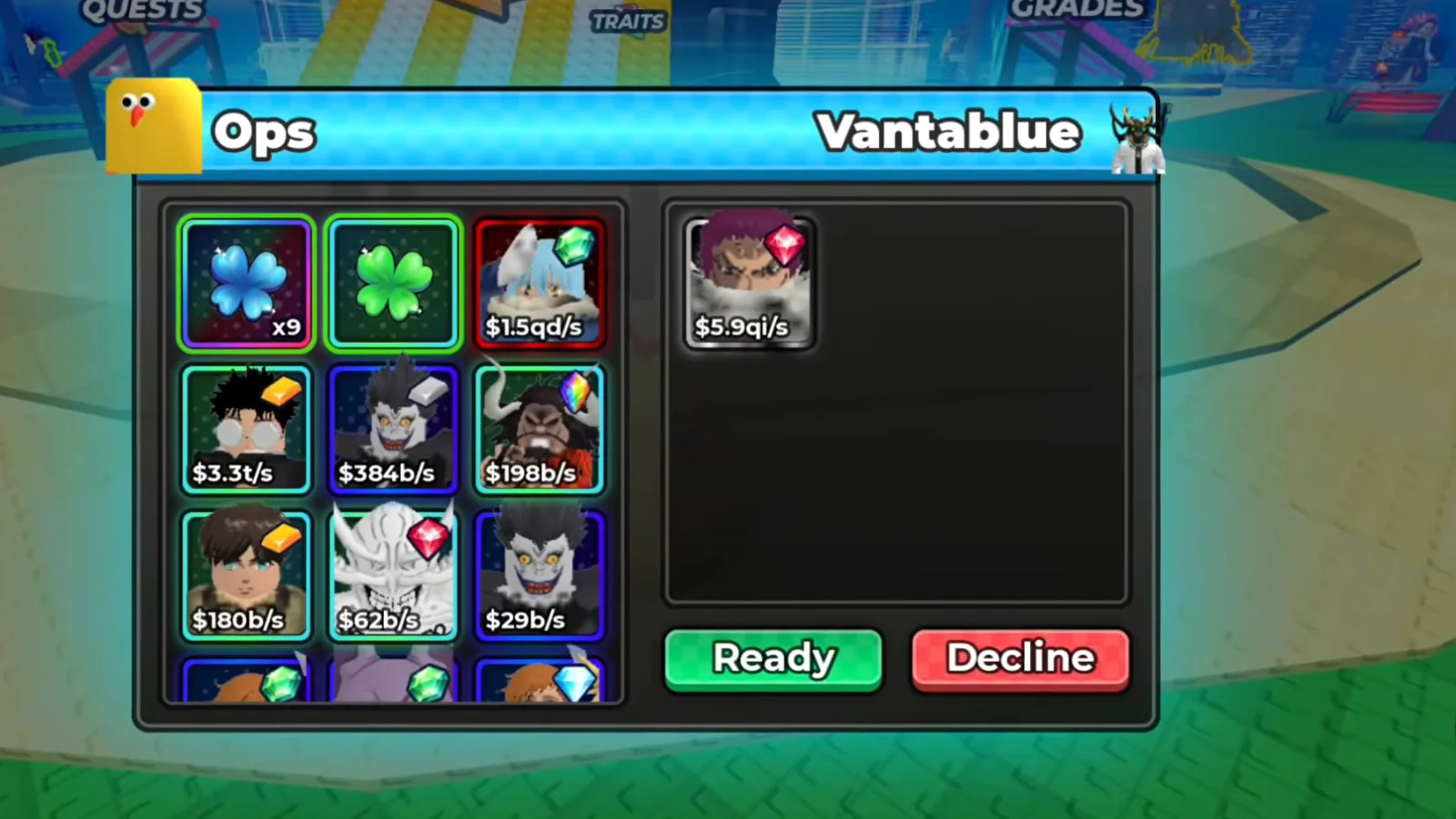
The left half is a scrollable three-wide grid — a fourth row is cut off by the panel edge in this frame — and the right half is a much larger panel holding one tile. Neither half carries a label of its own.

The whole trade, once through: offer grid, both Ready states, Accept, Confirming, Saving and the Completed line, from about 0:46 to 1:05 of this upload
Read the pieces separately, because each one answers a different question:
- The names. Both halves are titled with a player name, not with
YouorThem. Which half belongs to whom has to be worked out from the buttons: in our recording the right half is markedReadywhile the bottom button still readsReady, and the button only changes toAcceptwhen the left half is marked too — so the left half is the local player’s and the button is the local player’s own. No frame prints “your offer” on either side. - The tiles. The left grid’s first tile is a blue four-leaf item with a
x9count in its corner; the second is a green clover with no caption at all; the rest are unit cards, each with the unit’s full art and a small caption under it. The right half’s single tile carries the same kind of caption. So the window takes items as well as units, and it takes them in stacks. - The captions. The form is
$.../s— a cash-per-second rate. We verified what that figure is by reading the same account’s Backpack in the same recording: the Backpack’s Units grid prints$.../sunder every unit card (visible at 0:01 and again at 1:23). It is the card’s own income line, not a price and not a trade value. - What is missing. No price, no total, no fee, no per-side summary, no capacity counter, and no
Xclose button. The only controls on the whole window are the two buttons at its bottom right. A trade you no longer want is not closed with a corner button; the visible exits areDeclineand the pair of ready states.
What Do Ready, Accept and Decline Do?
Ready is per side, and the frames walk it through in order. Both halves start unmarked, with the green button reading Ready.
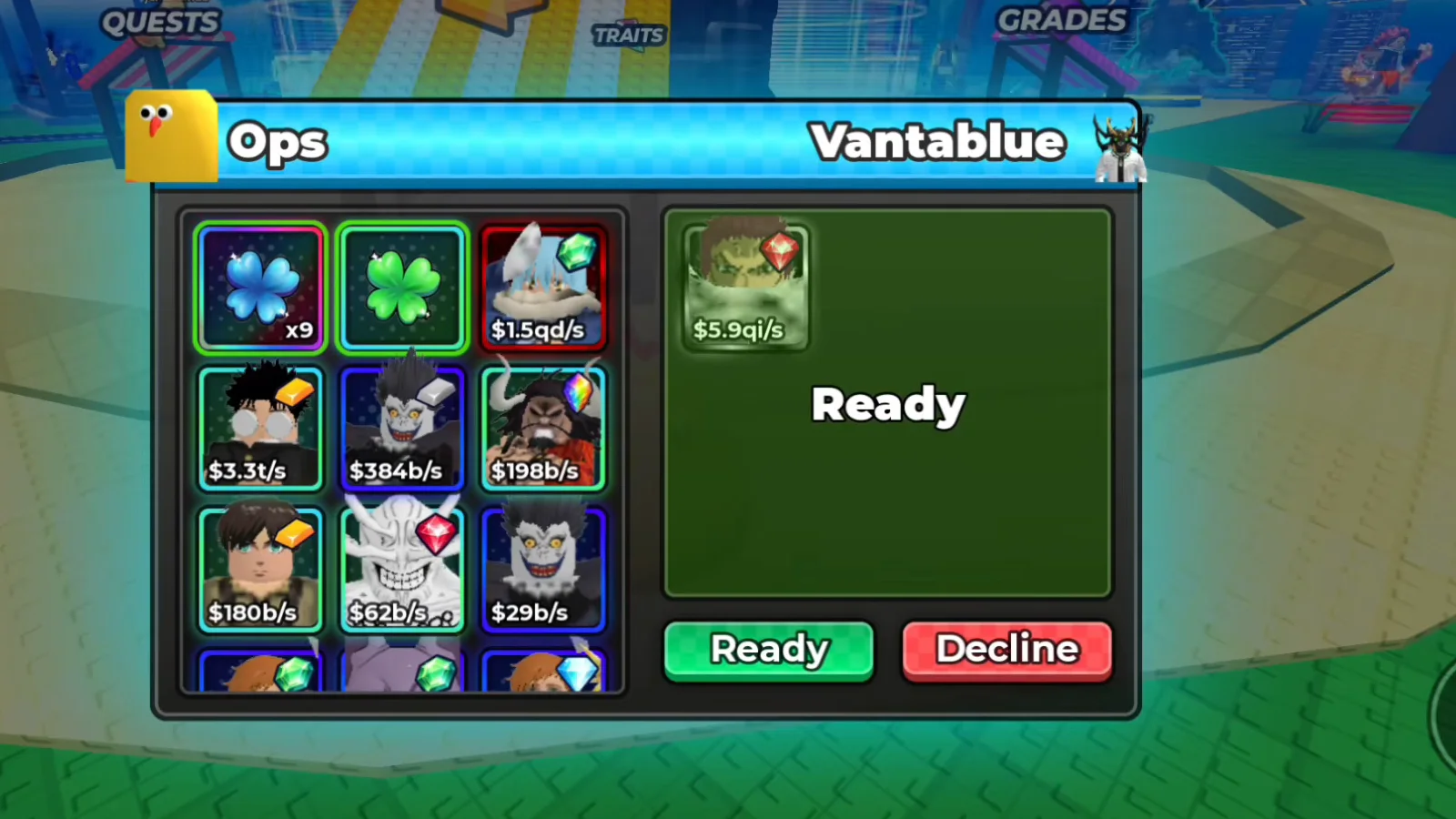
The other player has pressed their Ready: their half is tinted and labelled, and your own button is unchanged. This is the frame that proves the state is per side rather than shared.
Watch the one-sided Ready at 0:53
A moment later the local player presses their own Ready, both halves carry the same green wash, and the button underneath changes:
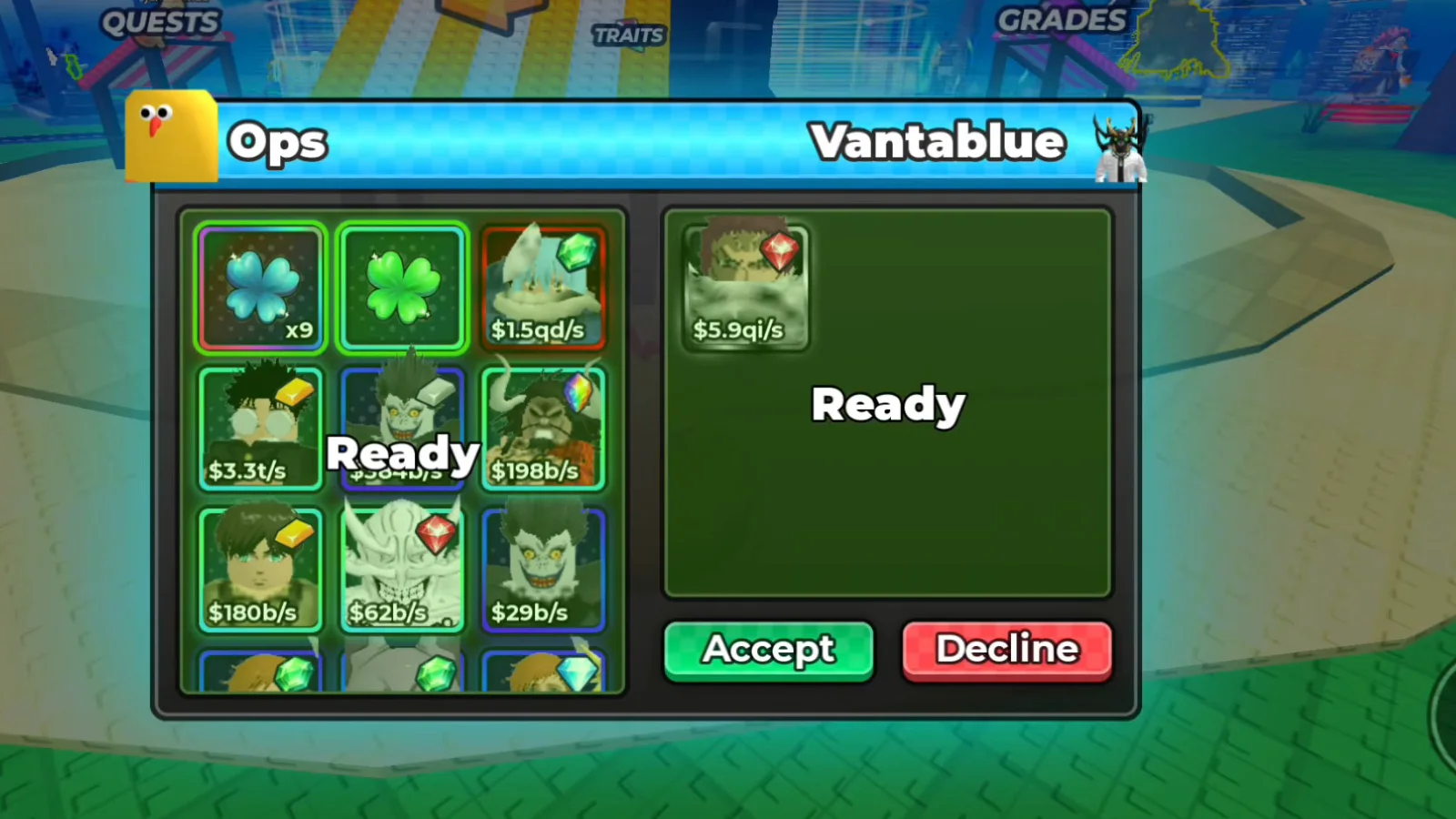
This is the state that gates the trade: Accept only exists while both halves are marked. It stays on screen from about 0:54 to 0:59 in our recording, which is the whole window a player has to change their mind in.
Watch both halves Ready and Accept appear at 0:58
Decline is printed in red beside the green button in every frame we captured — unready, both-ready, Confirming and Saving.... What it does is not something this page will describe, because no frame of ours catches it being pressed, and the window has no other exit control to compare it against.
What Happens After You Press Accept?
The swap is not instant, and the client narrates it in the window itself before it closes. Three states, each pinned to its own second:
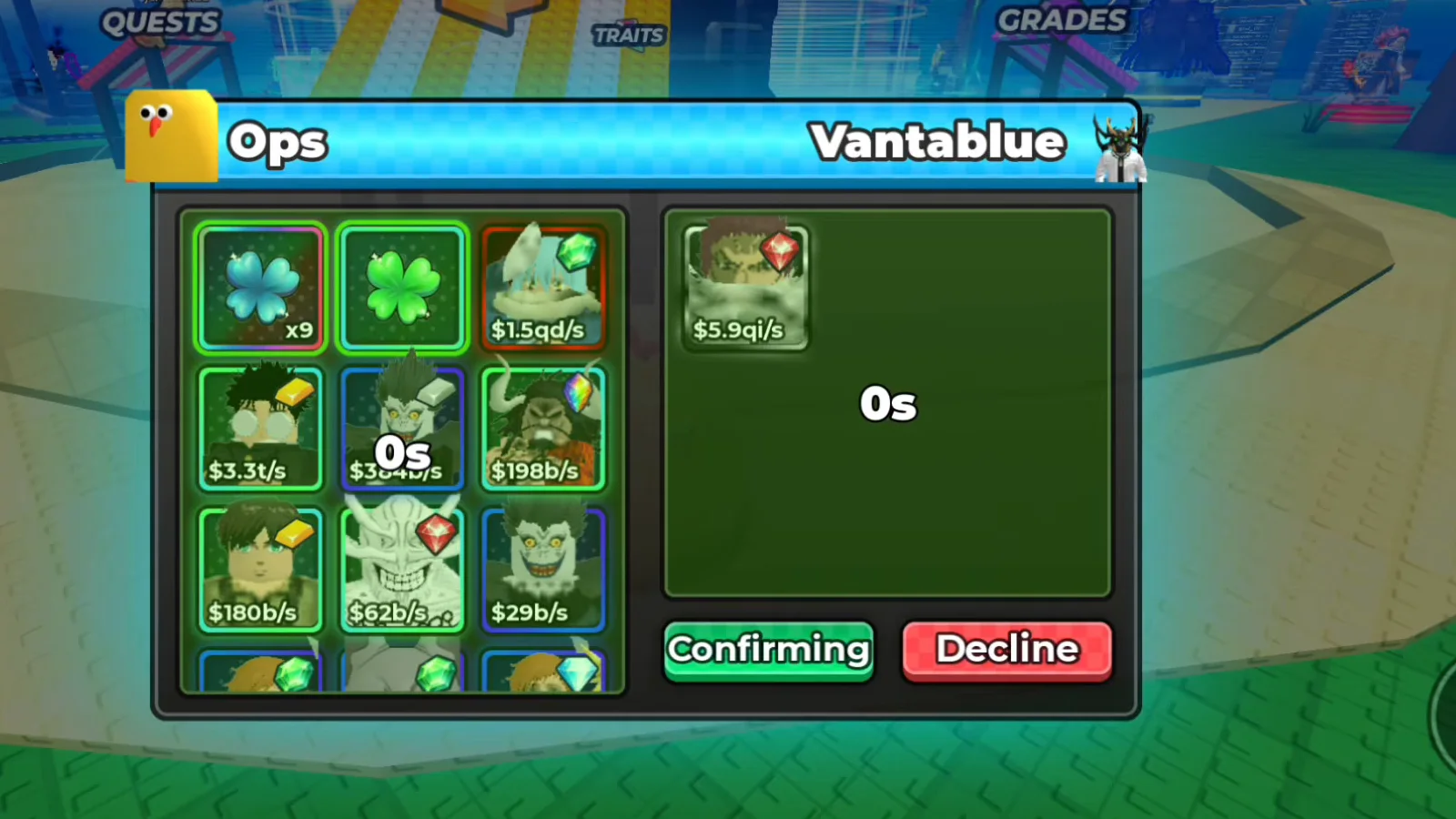
The first state after Accept: both halves and the green button change together, and the only other control on the window is still Decline.
Watch the Confirming state at 1:00
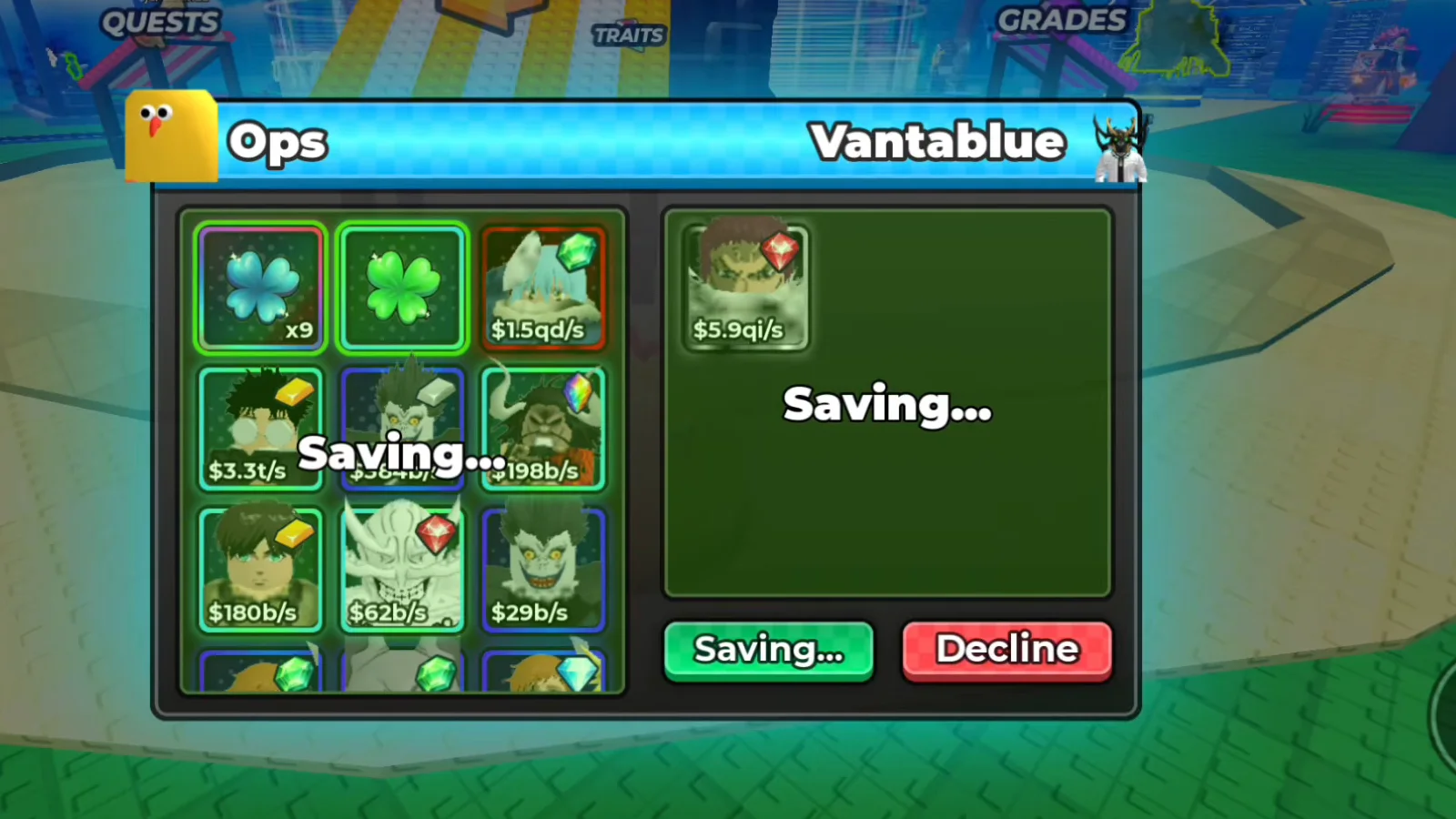
Saving... replaces Confirming about a second and a half later and holds for roughly two and a half seconds. Then the window is gone.
Watch the Saving state at 1:02
The completion is on screen, and it is the easiest part of this sequence to miss. At about 1:03.3 the window disappears and the world prints Completed under the player, in the game’s white-outlined in-world type, for a little over a second.
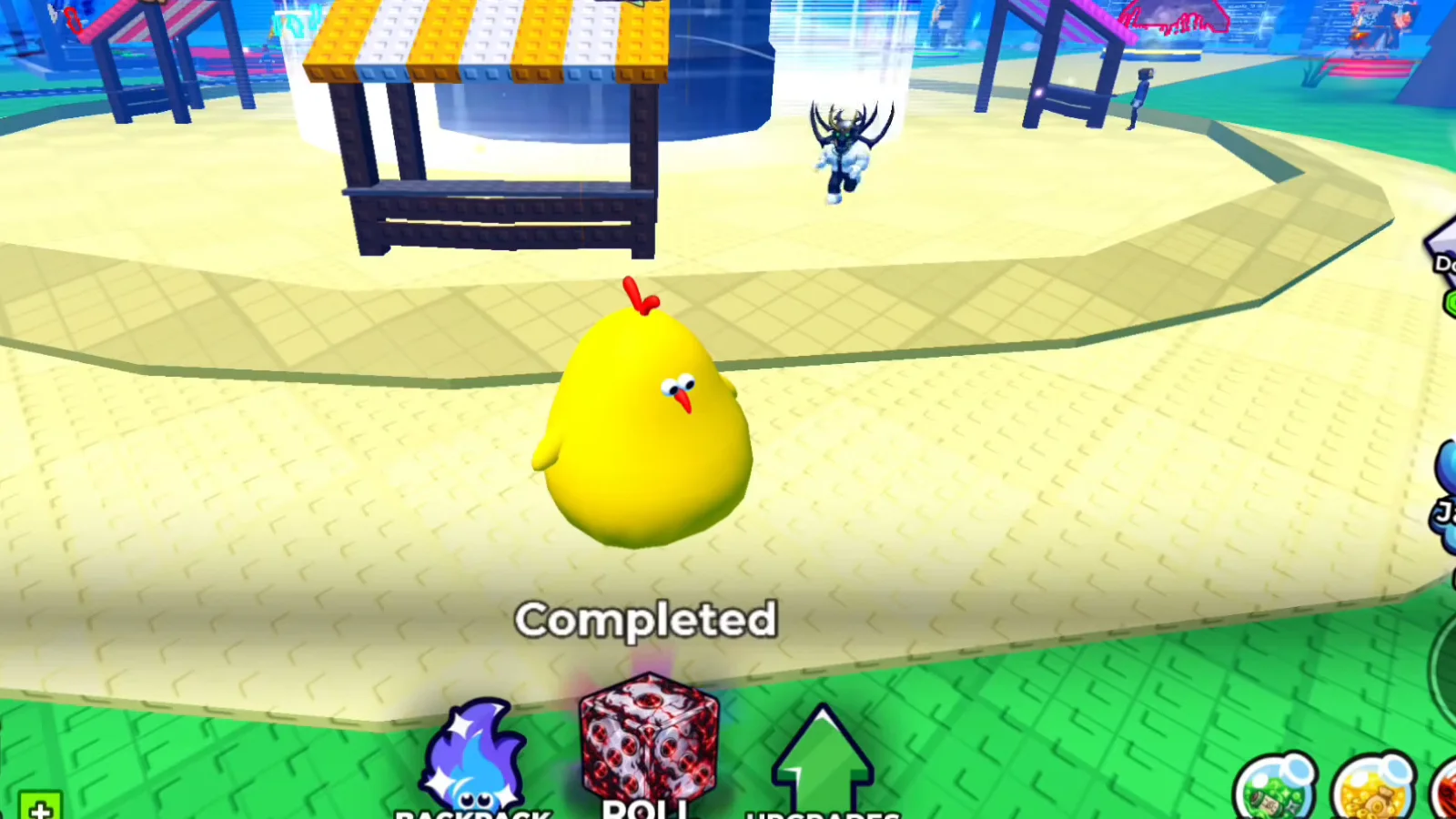
That word is the entire completion signal. No confirmation panel opens, no notification appears in a list, no figure in the window changes; the window is gone and the world says one word.
Watch the window close and Completed print at 1:04
Can You Trade Units, Items or Anything Else?
The window clearly accepts more than units, and that is a frame-level finding rather than a guess: the left grid in our recording holds two tiles that are not unit cards. The first is a blue four-leaf item tile with a x9 count in the corner — the same stack badge the Backpack’s Items tab uses on consumables — and the second is a green clover with no caption beneath it, where every unit tile has one.
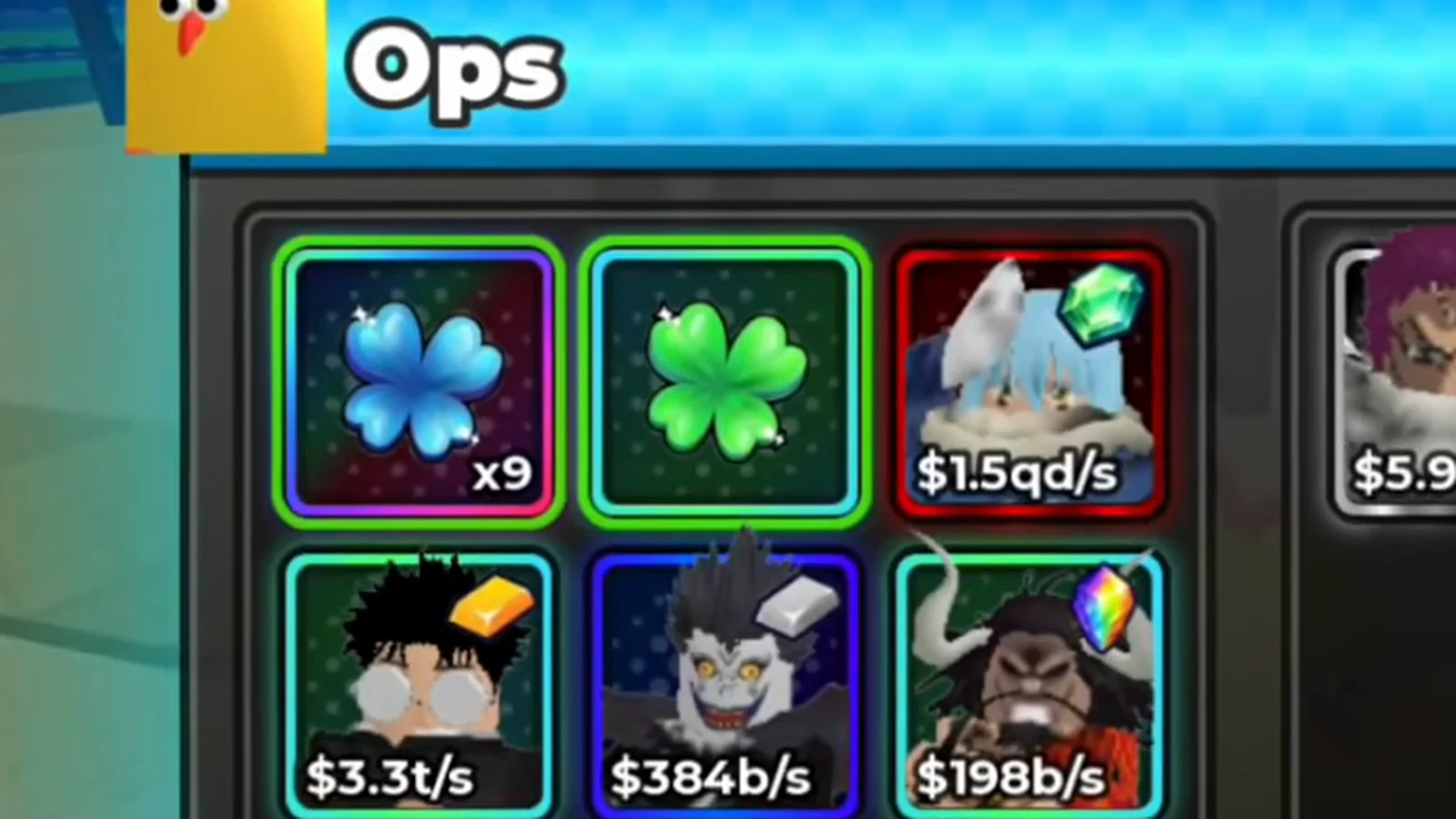
Two non-unit tiles in the same grid as the unit cards: consumables are tradeable in the same window. Neither tile is named anywhere on screen — no tooltip appears in any frame — so this page does not name them either.
Watch the offer grid with its stacked item tile at 0:47
That is also the reason the question of gears stays open. The gears page records that no frame it read shows any upgrade, reroll or trade option for equipment, and the Backpack’s Gears tab offers only its five labelled boxes. If a gear could be placed in this window, the grid is the natural place for it; no frame we have puts one there. Treat “gears can be traded” as unverified until a frame shows the tile inside the grid.
The same caution applies to where the offered tiles come from. The window shows no source pane, no Your Backpack header and no picker — the tiles are simply present. Whether an offered tile has to be in your Backpack, or can be pulled back off your plot, is not something any frame of ours establishes.
Do Trade Shards Come From the TRADE Booth?
Cannot be determined from any frame. This is the loose end our own site already flagged, so it is worth stating exactly what the evidence is:
- Our grades page separates two reroll currencies — Grade rolls spend Gems, Trait rerolls spend Trade Shards — and the reroll priority plan records the shard side as farmed from rolls and progression. That is this site’s existing position on where shards come from, and it does not mention the trade station.
- Our trade frames show the offer grid holding unnamed stacked item tiles, so the window does accept items. But no tile in any frame is named: no tooltip opens over a trade tile at any second we sampled, and nothing prints the words
Trade Shardin the window. - The hub’s
TRADEstall is read only as signage in our frames. No interaction with it is captured, so we cannot show it paying anything out.
So the honest reading is: shards are spent on the Grades screen, our frames show items flowing through the trade window, and whether the TRADE stall is one of the places shards come from is unknown. If your client shows a shard tile in a trade window, or a payout from the stall, the contact page takes dated screenshots and we will correct this page.
What Could Not Be Determined From These Frames?
Everything below is a real gap, not an oversight:
- What opens the window. The two request surfaces quoted above are not in our clean recording, and the window appears there between two consecutive frames with no prompt, cursor or stall interaction on screen. Whether the booth must be used, or simply the place players agree to meet, is undetermined.
- What
Declinedoes. Printed in every frame, never pressed in any of them. - Whether the halves are labelled for the reader. Both halves carry player names only. Our reading — left half is the local player’s — comes from the button changing state when the left half readies, not from a label.
- What the
0smeasures. It is printed as a state; we never saw it count. - What a request row prints after
Send. TheTrading!panel is on screen for a few seconds in the one recording that shows it and every row readsSend; the panel closes immediately afterwards, so the post-click label is not in any frame of ours. - Where offered tiles come from. No source pane, no picker, no capacity counter.
- What the tiles were. Two offer tiles carry no name at all in our frames.
- Whether
Trade Shardscome from this stall. See above. - Whether gears can be offered. No gear appears in any trade grid we read.
- Whether the window changed in UPD 6. Every picture on this page comes from a recording uploaded 2026-09-26, which predates the current UPD 6 build. The labels are not contradicted by a 2026-10-01 recording, but we have no clean UPD 6 picture of this window, so the page carries no version badge and this line is the disclaimer instead.
- Anything about prices, values or rankings. Nothing in the window prints one, so there is nothing to read and nothing to compare.
If your client shows the request prompt on screen, the Decline button being pressed, or a named tile inside a trade window, the contact page takes dated screenshots and we will credit them here.
What Should You Read Next?
- Selling units — the other half of the same question: which exit turns a unit into cash, and why the sell stall’s menu is not this window
- Gears — the equipment system with no trade option in any frame, and the same refusal to rank things the screen does not price
- Huge and titanic units — the rarity band that dominates trade requests, and where this site declares trading values out of scope
- Quests and tickets — the hub map the
TRADEsign sits on, read off its own frames - Grades — where the shards this page could not trace are actually spent
- Reroll priority — the site’s existing record of where shards come from
- Unit Index — the
1 in ...odds scale printed on the tiles this window holds - Update history — which build each screen on this page was captured in
Sources: every label, state and tile printed here as a picture was read at native 1920×1080 from a no-facecam, no-burned-caption recording; the two further recordings quoted in prose contribute no pictures, and each is named as quoted-only where it appears. The window itself, from its two named halves to the
Completedline, comes from Ops Gamer’s 91-second trade clip (uploaded 2026-09-26) — the whole sequence, offer grid to completion, runs from about 0:46 to 1:05 of that upload, and each state screenshot above deep-links to the second it came from. The hub signage is native-read from Cx’s long hub session (uploaded 2026-09-18) at 9:20. Two further recordings are quoted for facts and deliberately excluded from the picture set, because both burn overlays into the picture: Default Dyver’s 2026-10-01 session carries theTrading!request list with its greenSendrow and itsTrade Requests: ONline, and a 2026-09-30 Portuguese-locale recording carries the incomingenviou-lhe um pedido de troca!prompt with itsAceitarandRejeitarbuttons. The upload dates matter here: none of our pictures is UPD 6 evidence, and the developer publishes no changelog for this feature at all.
Artigos relacionados
guides
Anime Dice Calculator: Cash per Luck and the Next-Dice Wait
Every Anime Dice dice price re-read at native resolution, turned into cash-per-Luck arithmetic from the 42x rung to 5,000,000,000x, plus the wait formula.
guides
Anime Dice Unit Levels: How to Level Up and What Each Level Costs
Anime Dice unit levels read frame by frame: the level sign on your plot, the cash the next level takes, a seven-step price ladder and the level cap nobody prints.
guides
Anime Dice Gears: Rarities, Bonuses and Where They Drop
Anime Dice gears are UPD 6 tower-drop equipment worn in the Backpack's Gears tab. We read six of them frame by frame: name, rarity word and bonus row.
Isso foi útil?
Obrigado pelo feedback!