Anime Dice How to Sell Units: the SELL UNITS Stall and Auto Sell
Anime Dice how to sell units, read frame by frame: the SELL UNITS stall menu, the inventory Confirm? panel and its $2.6k payout, and the Auto Sell odds field.
FAQ
How do you sell units in Anime Dice?
What are the four options at the Anime Dice SELL UNITS stall?
What does Edit auto sell settings open in Anime Dice?
Is the Auto Sell in Anime Dice's Settings panel the same setting as the one at the stall?
Does the Anime Dice Backpack have a sell button?
How much cash does selling your inventory in Anime Dice give you?
How Do You Sell Units in Anime Dice?
By walking to the SELL UNITS stall and talking to the counter. There is no sell button in the Backpack, no sell tab in any menu, and no keyboard shortcut that we could find in the footage: the only exit for a unit is the stall, and the stall opens a four-line menu printed into the world.
That menu is the whole surface of the feature:
| Line as printed | What our frames show |
|---|---|
| 1.) I want to sell this! | the single-unit path — our capture never opens it, so we do not describe what “this” refers to |
| 2.) I want to sell my inventory! | the multi-card path, which ends in a Confirm? dialog listing every card with one total |
| 3.) Edit auto sell settings! | the Auto Sell panel with the 1 in … threshold field — this page’s main subject |
| 4.) Goodbye! | closes the menu |
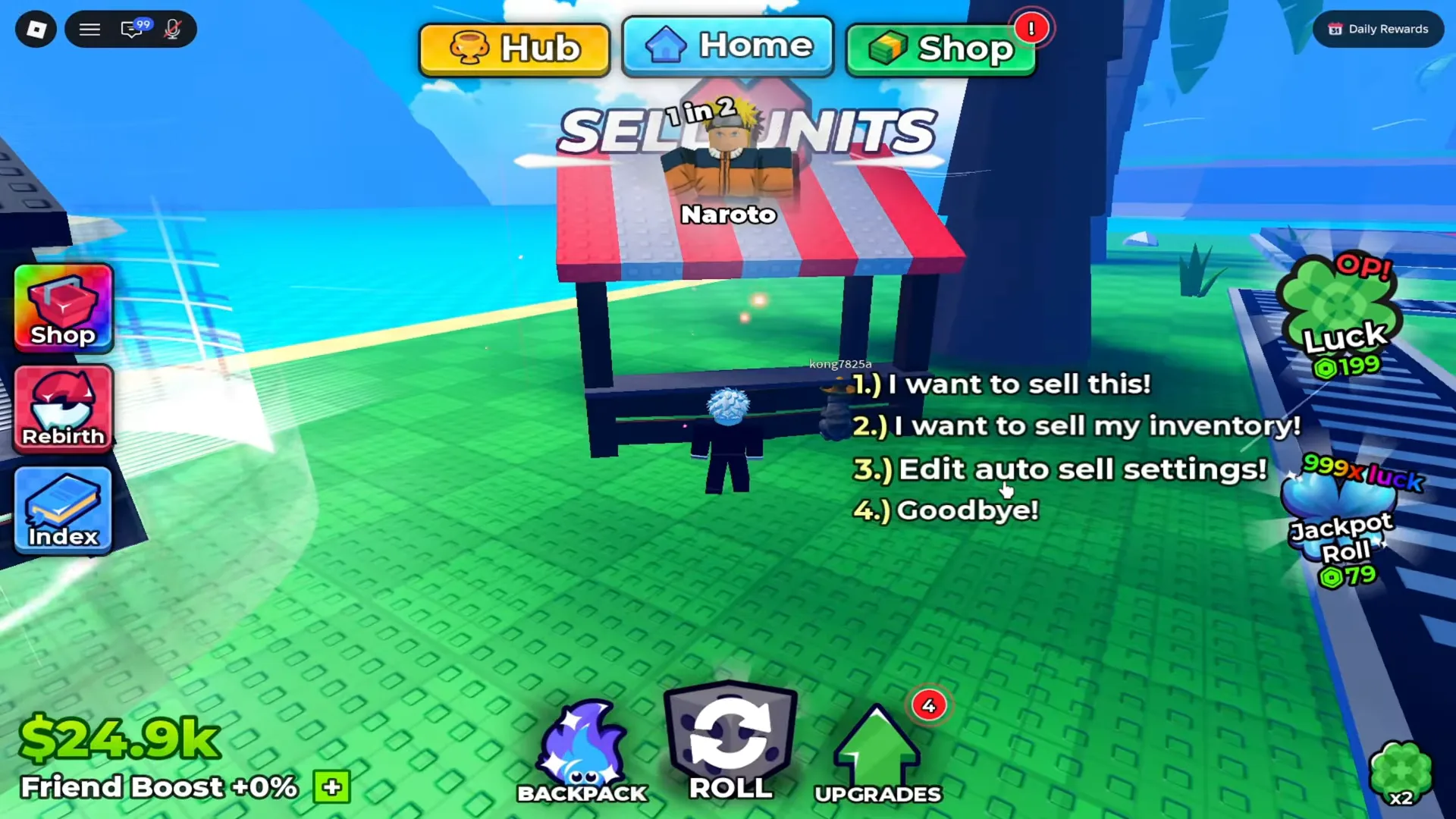
The stall signs itself, and so does its menu. Nothing here is a UI window.
Sources: every still on this page is a frame from a no-facecam, no-burned-caption recording, each checked at native resolution. The stall, its menu, the
Auto Sellfield and the inventory sale come from ValidOffical’s DOMINATING The LEADERBOARD In ANIME DICE Roblox (uploaded 2026-09-17, 13 minutes 58 seconds), a session that also carries the player’s own unit nameplate over the hub. That upload burns tutorial captions into the picture from about 6 to 18 seconds only; every frame used here sits past 2:10, well clear of them. TheSettingsrow comes from Superlex Plays’ MY JOURNEY TO ETERNAL TRAIT! + REBIRTH 10 (uploaded 2026-09-24, 24 minutes 44 seconds): the panel is open at about 11:28 to 11:38 and the still on this page is the one at 11:34. That upload’s 1080p streams would not download for us, so this one still comes from its 720p rendition and is published at that native size, where the row is fully legible. A small Roblox avatar head graphic sits behind the game’s Shop button at the left edge of that recording for the whole stretch we sampled, and no webcam or caption overlay appears anywhere in what we checked. Both recordings predate the current UPD 6 build — the developer publishes no changelog and no explanation of the sell system at all, which is why the numbers below are quoted as they were printed, with their recording dates.

The session on which this page is based — the stall, its menu and the Auto Sell field are on screen from about 2:12 to 2:29
What Are the Four Options at the SELL UNITS Stall?
They are printed in the world, in the game’s usual white-outlined in-world type, stacked to the right of the counter. Read off the frame at 2:13:
1.) I want to sell this!2.) I want to sell my inventory!3.) Edit auto sell settings!4.) Goodbye!
Watch the four-line menu at 2:13
The number keys are part of the string, so the menu is meant to be answered by pressing 1 to 4. What we cannot show is the click that selects anything: the menu is on screen at 2:13, the Auto Sell panel replaces it at about 2:14, the menu is back with the Backpack open at 2:22, and by 2:26 a Confirm? dialog is up listing a full inventory. The sequence is consistent with option three then option two, and it is our reading of the order rather than a frame of a cursor on a line.
That ordering question is the reason this page exists. Our plot slots page reads the same four lines off a different recording and stops at option three, because that recording never opens it; the settings that sit behind it are on this page, and the loop they belong to — sell the backpack, reinvest the cash, go away again — is the subject of the AFK farming guide.
What Does “Auto sell units below a 1 in … chance” Actually Set?
Option three opens a panel headed Auto Sell, and the panel is a single sentence with a hole in it:
Auto sell units below a 1 in [ ] chance
Everything that matters about the control follows from that sentence. The field is not a switch and not a rarity list: it is the N of a 1 in N odds figure, and the client wraps its own words around it. Empty, the box shows a small grey three-dot placeholder rather than a zero — which is a hint in itself, because the same placeholder sits in the empty Auto Sell box of the game’s Settings panel.
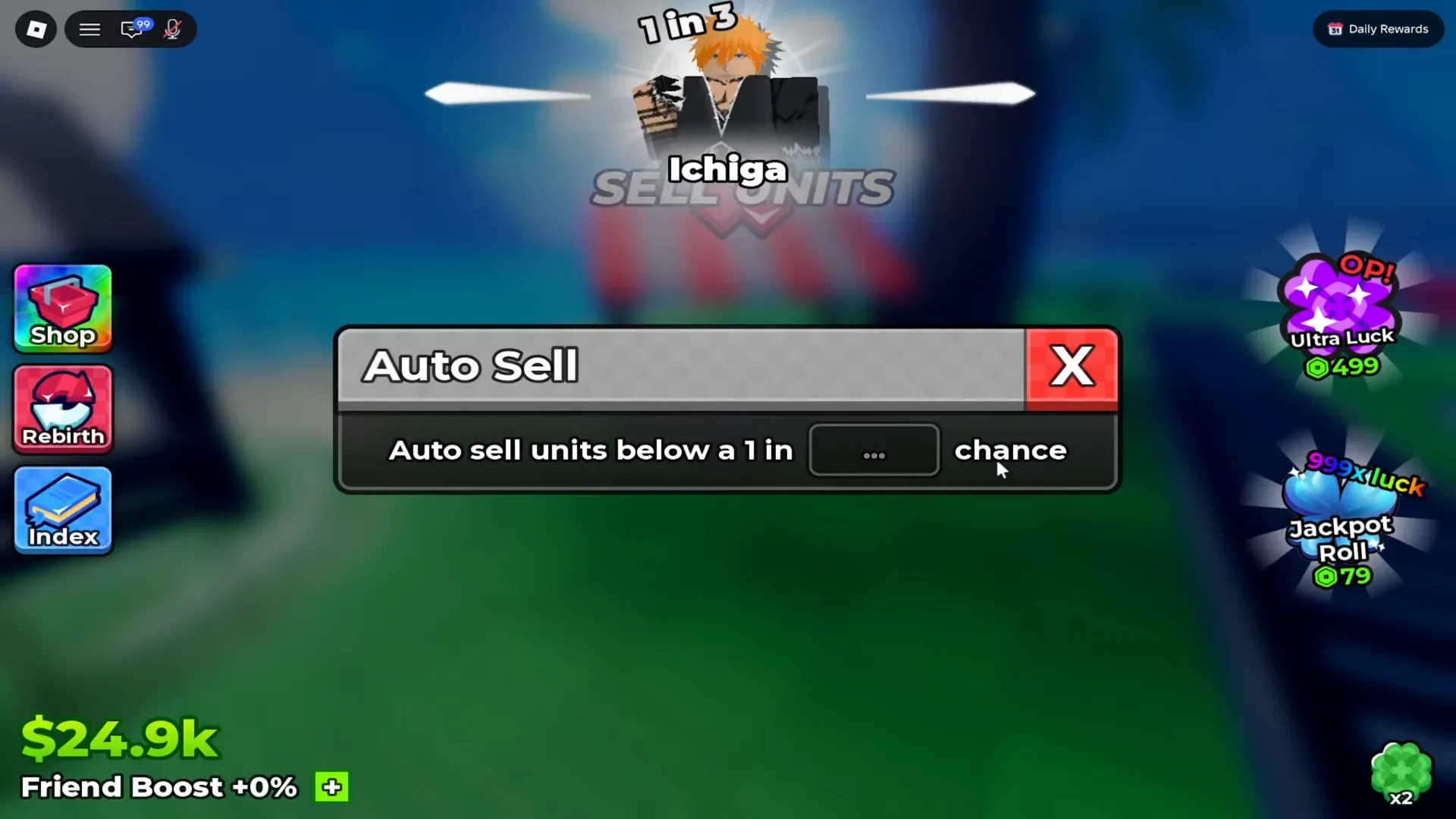
Nothing is pre-filled and nothing is suggested. The client waits for a number.
The value in our capture was typed in plain digits, and at 30 frames per second the field walks through the possibilities in under a fifth of a second. At about 2:16.8 it holds 1; at 2:16.9 it holds 10; from about 2:17.0 onward it holds 100.
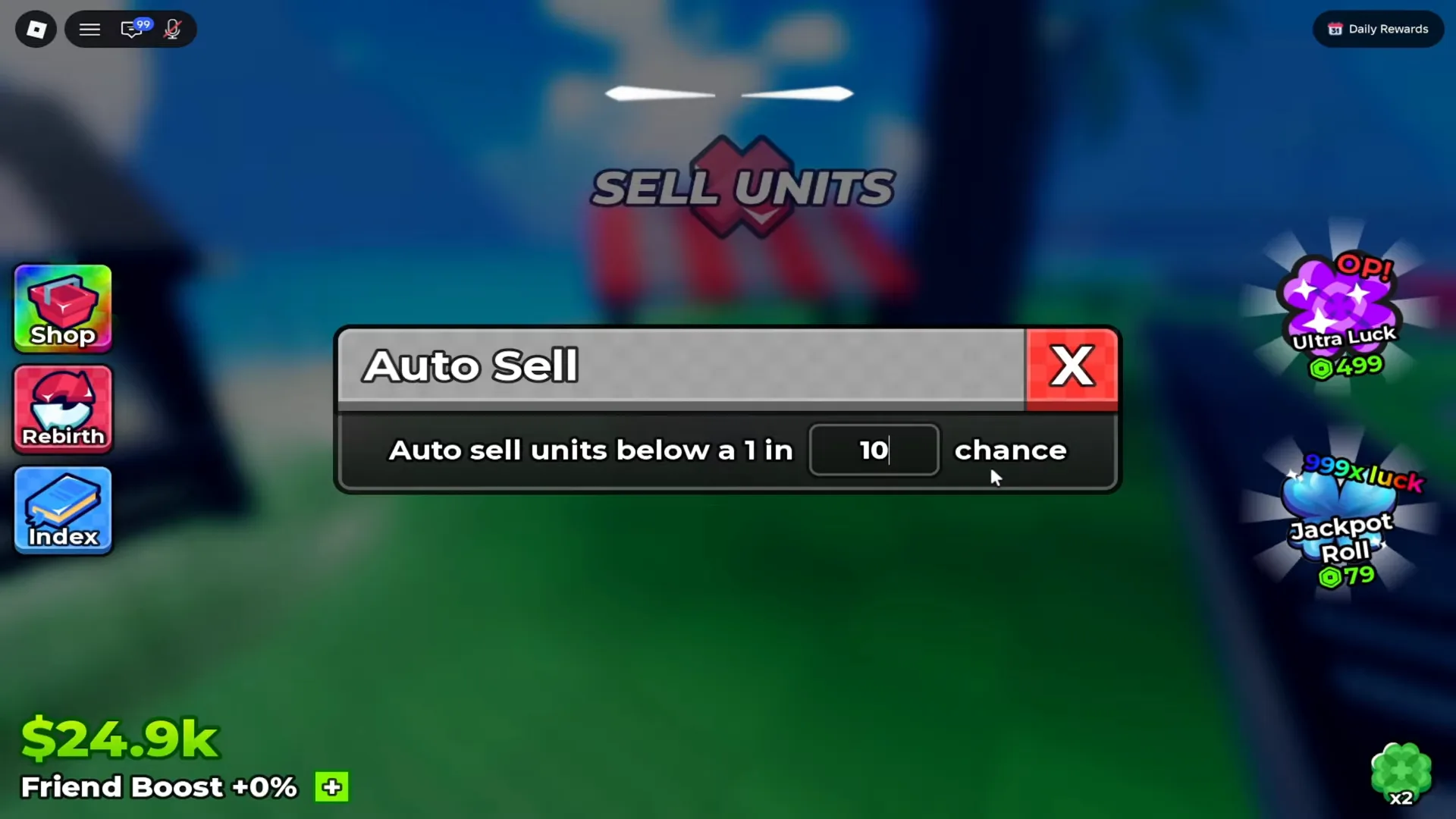
Two frames before the last zero. The panel rewrites itself as you type.
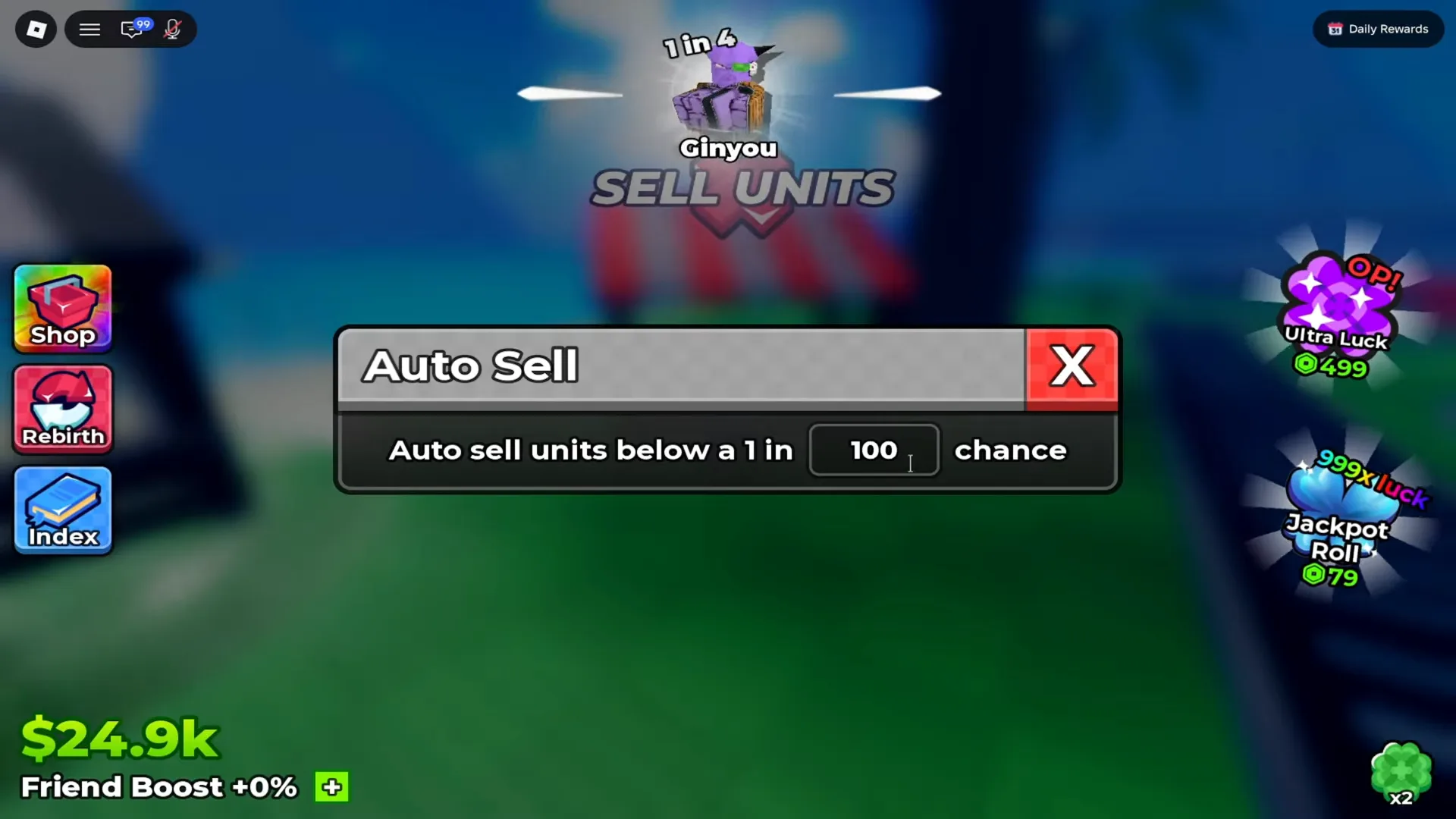
The finished reading. What the sweep does with a unit on either side of that line is not printed anywhere.
The 1 in … grammar is the client’s standard rarity scale, not something invented for this panel: the same figure is printed on a unit’s floating nameplate, on the Index’s catalogue rows, and on the plot signage our plot slots page transcribes. It is also why the “below” in the sentence is harder than it looks — “below a 1 in 100 chance” is a statement about rarity, and rarity runs in the opposite direction from the number.
Does the Anime Dice Backpack Have a Sell Button?
No, and the frame is worth keeping because most inventory-shaped games do. The Backpack panel carries Units and Items tabs down its left edge, a grid of owned cards each printing only a cash-per-second figure, a padlock button, a green Equip Best button, and a capacity counter at the bottom — 30/100 in our capture. There is no sell control anywhere on it.
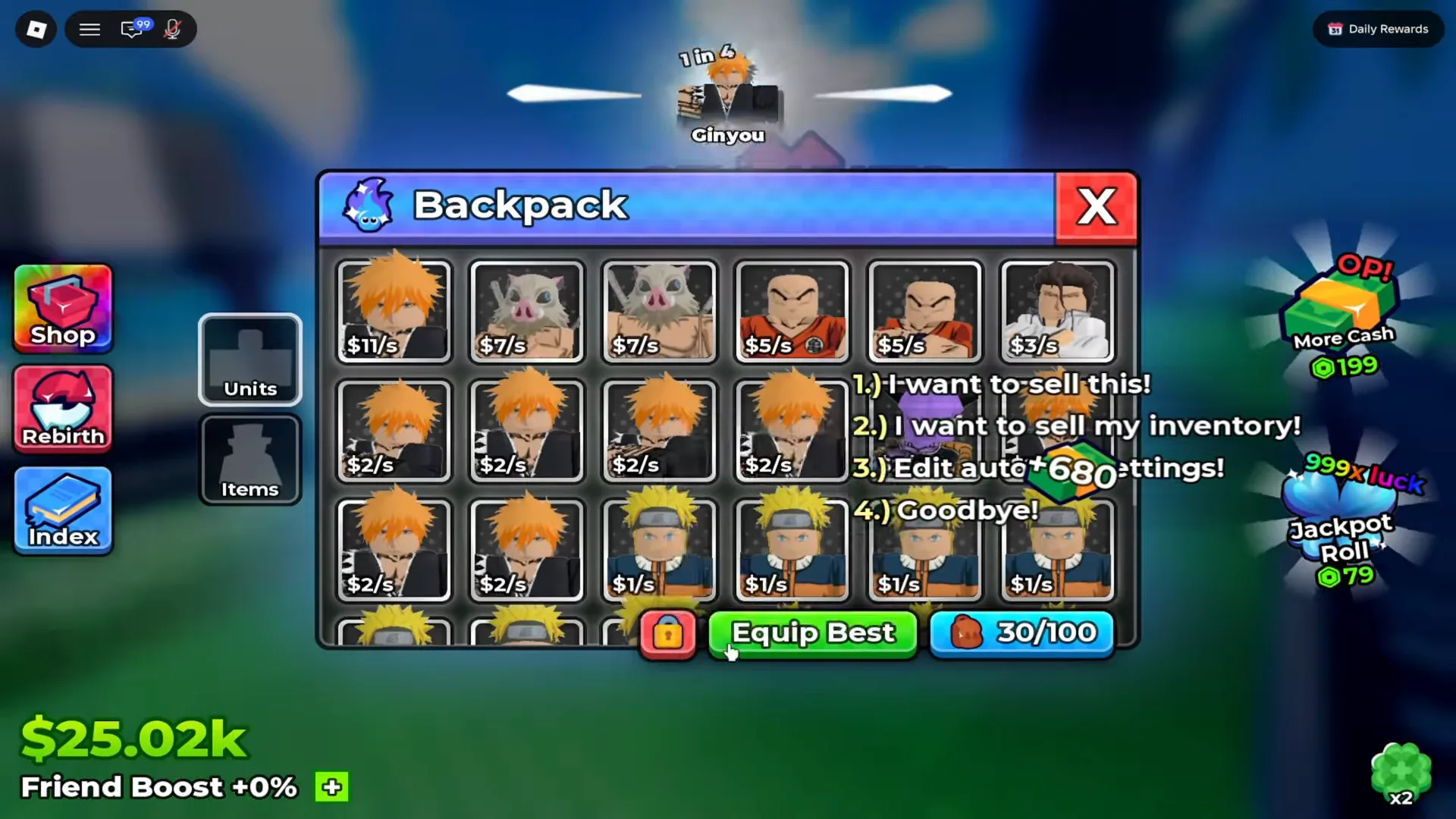
The Backpack’s entire button row. Selling is somewhere else, and the game makes you walk there.
That counter is the pressure that sends you to the stall. When the carried-unit number reaches its ceiling the client starts stacking the warning Your unit inventory is full, sell some units!, which the plot slots page reads off both the panel and the world. Selling is the only documented way to make that warning stop, and the stall is where selling happens.
What Happens When You Sell Your Whole Inventory?
The client asks first, and the question is more informative than most confirmation dialogs. It is headed Confirm? behind a yellow warning triangle, and under a Selling: line it lays out every unit about to go as a card:
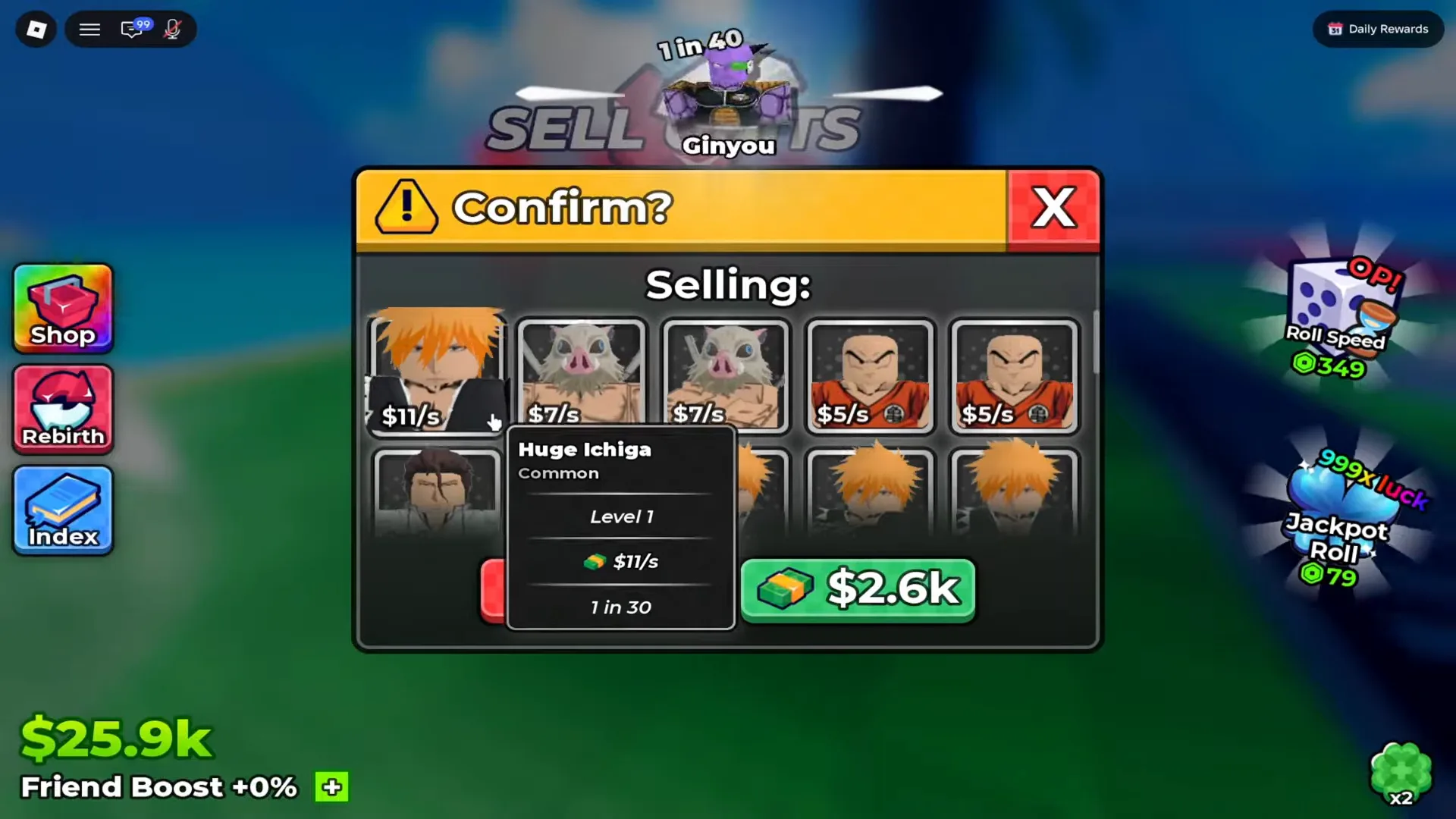
Every card prints a rate, the dialog prints one total, and the total is the only figure the sale is priced in.
Read the pieces:
| Element as printed | What it shows in our frame |
|---|---|
Confirm? header | the sale has not happened yet — this is the last screen before it does |
Selling: | the list below is what leaves the account, not what you keep |
card figures ($11/s, $7/s, $5/s, $3/s, $2/s, $1/s) | each card’s cash per second — no card price is printed anywhere |
hover tooltip (Huge Ichiga / Common / Level 1 / $11/s / 1 in 30) | the tooltip mirrors the card: rarity word, level, rate and odds |
green $2.6k button with a gold ingot icon | the single total for the whole selection |
| red button at the bottom left, clipped by the panel edge | a second action we can see but not read — its label sits past the edge of the panel in our frame |
Then the panel closes, and the only place the payout shows up is the cash counter.
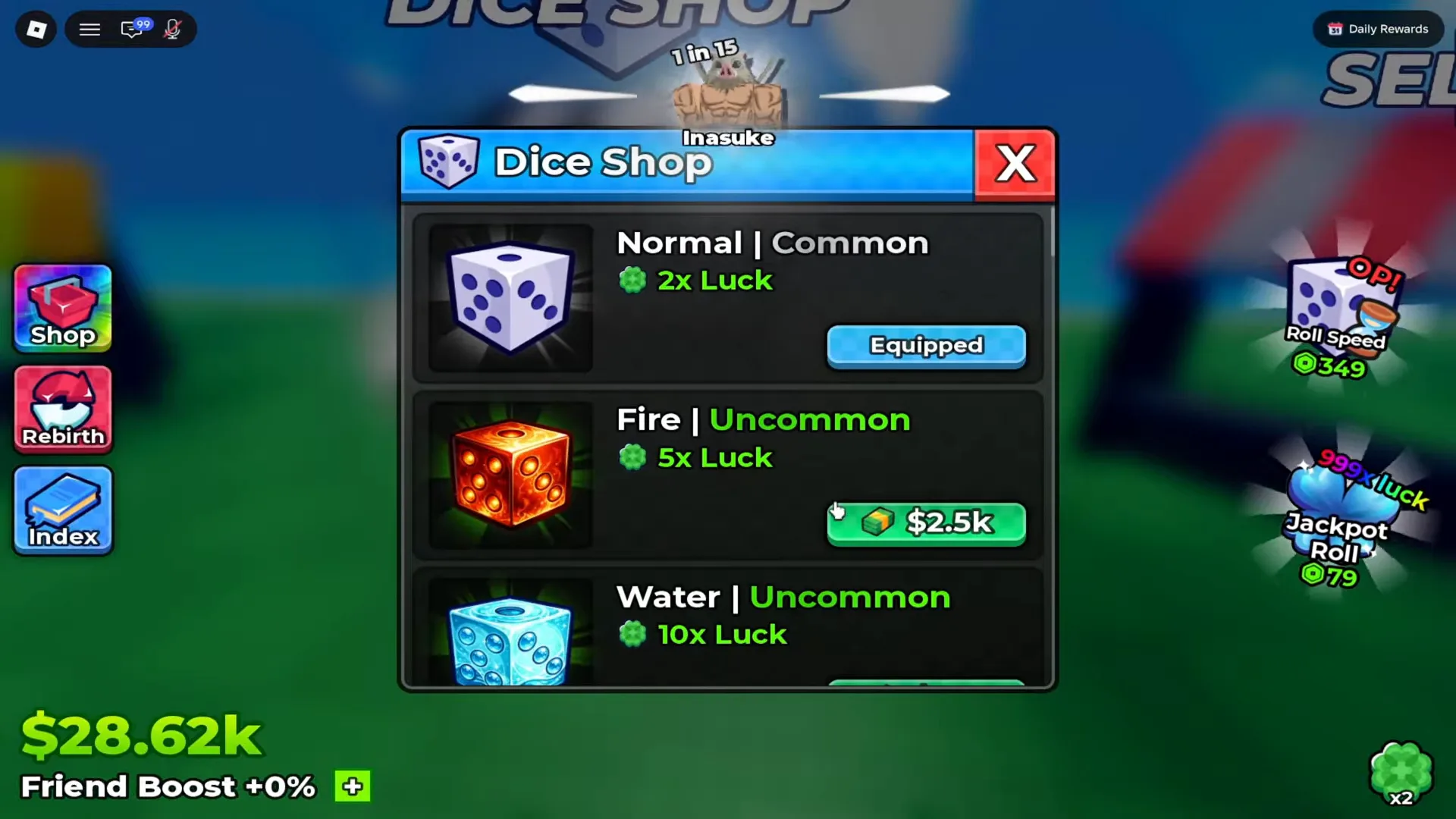
The HUD’s cash figure is the receipt. Nothing else on screen changes.
The arithmetic is worth stating precisely, because it is the only measurement of a sale on this page. With the Confirm? dialog open the counter read $25.9k. Three seconds later, dialog closed, it read $28.62k. That is a rise of about 2.7k against a button that promised $2.6k and a plot whose units were printing single and low-double-digit cash per second — so the jump is the payout, not income. What the client does not print is how the total was computed: the cards carry no prices, so the relationship between ten-odd units and $2.6k is not recoverable from the screen. Our plots-and-slots and character tier list pages are the site’s record of what drives unit income in the first place.
Is the Auto Sell in Settings the Same Setting as the One at the Stall?
Whether one stored value sits behind both boxes, we cannot determine and this page will not assert. Two screens in this game use the words Auto Sell, and they look different:
| Stall panel (option 3) | Settings panel row | |
|---|---|---|
| Title / label as printed | Auto Sell panel, row reading Auto sell units below a 1 in [ ] chance | row labelled only Auto Sell |
| Value in our frames | typed 1, 10, 100 in the recording we measured | 100t, then blank, then 200t in the recording we measured; 1t on the account our settings page filmed on 2026-09-16 |
| Unit printed next to the value | 1 in … chance — odds language, spelled out | none — a bare magnitude with no 1 in and no chance |
| Empty state | grey three-dot placeholder | the same grey three-dot placeholder |
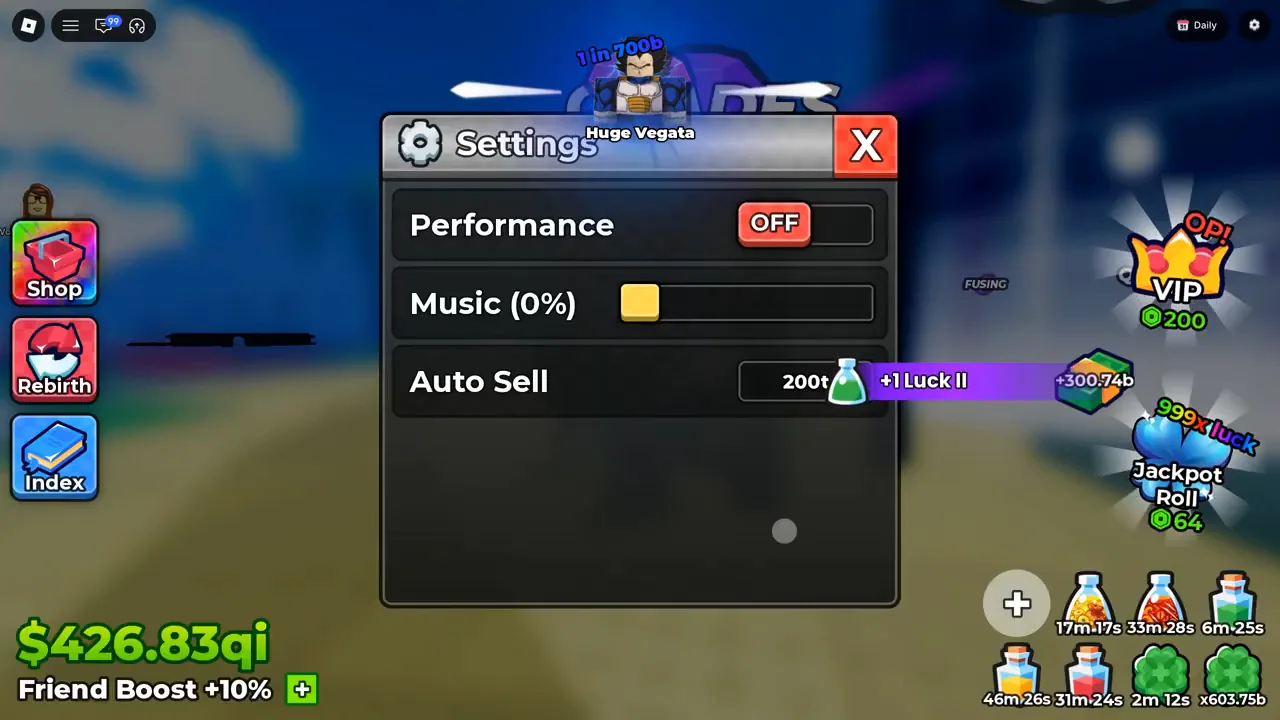
200t, and not one word on the row saying what the number measures.
Watch the Settings row at 11:34
A plain number sits there with no unit label, and a plain number can be read at least two ways. It could be the same odds threshold with the shorthand left off — 200t meaning 1 in 200t, about two trillion times rarer than the stall’s 100. Or it could be a cash-shaped threshold for a sweep, in which case the two controls only share a name.
The person editing that row in our second recording answers half of the question himself, out loud, while the panel is on screen. At about 11:26 he says he wants to change “a one in 100 trillion auto sell”; a few seconds later, having typed it, he says “auto sell what, one in 200 trillion at least. So, there we go. So, now automatically things will get sold anything under 1 and 200 trillion”. That is the operator of the screen reading the bare 200t in the box as the N of a 1 in N threshold — the same grammar the stall panel spells out — and the frame matches his sequence by the second: 100t, then a blank box, then 200t.
So the two screens are at least the same kind of control, and nothing we found supports reading the Settings row as a cash figure: the row has no label of its own, and the only person we have on camera using it describes an odds threshold. What is missing is the evidence that would make them the same stored setting — one frame holding both panels, or one box moving after the other is edited. Neither recording we checked contains that.
What Could Not Be Determined From These Frames?
Everything below is a real gap in the footage rather than an oversight:
- Whether the two Auto Sell controls are one stored setting. The two screens use the same
1 in Nodds grammar, the same two words and the same empty-state placeholder, and the player editing theSettingsrow says out loud that he is setting it to a one-in-200-trillion threshold. What no frame shows is the two panels together, or an edit on one moving the other. Undetermined. - What the auto-sell sweep actually does. Not the interval, not whether it runs while you are offline, not whether it touches units already placed on your plot, not what happens to a unit exactly on the line.
- Whether the sweep ran at all in our recordings. No unit leaves the account through it in any frame we sampled; the only sale we can measure is the manual inventory sale.
- What option one,
I want to sell this!, sells. The menu string is legible, the path behind it never opens on camera. - How the
$2.6ktotal was computed. The cards print cash per second and the dialog prints one total. No per-card price, no fee line, no breakdown. - The red button in the
Confirm?dialog. Visible as a colour at the panel’s bottom-left edge, clipped by the panel frame, unreadable. - The unit capacity ceiling.
30/100is one account in one second; our plot slots page reads a different denominator in a different session. - Why the 2026-09-24
Settingscapture prints three labelled rows —Performance,Music (0%),Auto Sell— while the 2026-09-16 capture our settings page uses prints aRoll Cutscenesrow above them. We did not investigate that difference here; it is not a sell-system finding, and it is flagged for the next content round.
If your client shows the stall menu and the Settings panel at the same time, an auto-sell sweep actually clearing a unit, or the Confirm? dialog with the red button fully on screen, the contact page takes dated screenshots and we will credit them here.
What Should You Read Next?
- Plot slots — the Backpack counter that fills up and the four-line stall menu this page opens
- Settings — the other row called Auto Sell, read off its own frame with the creator’s spoken description
- AFK farming — where auto-sell fits into an away-time loop, and why scripts are not the answer
- Index and Backpack — the
1 in …odds scale this panel’s field is written in - Upgrades tree — the Unit Storage branch that raises the ceiling the stall clears
- Update history — which build each screen on this page was captured in
Related Articles
guides
Anime Dice Gears: Rarities, Bonuses and Where They Drop
Anime Dice gears are UPD 6 tower-drop equipment worn in the Backpack's Gears tab. We read six of them frame by frame: name, rarity word and bonus row.
guides
Anime Dice Update 6: Release Date, New Dice and Verified Changes
Anime Dice Update 6 landed on 27–29 September 2026. Two clean sessions verify two new top-tier dice, an 11-step Grade Skip grid, Gears slots and the Towers panel.
guides
Anime Dice Leaderboard: The Three In-Game Boards Explained
The Anime Dice leaderboard read frame by frame: three ranked in-world boards headed Rarest, Rolls and Money, plus the server roster the game also shows.
Was this helpful?
Thanks for the feedback!