Anime Dice Settings Menu: Roll Cutscenes, Auto Sell and What They Do
Anime Dice's Settings panel has four rows — Roll Cutscenes, Performance, Music and Auto Sell — plus two skip-confirmation dialogs. Read frame by frame.
常見問題
Is there a settings menu in Anime Dice?
How do you turn off the roll animation in Anime Dice?
What does Auto Sell do in Anime Dice?
What does the Performance setting do?
Why does Anime Dice ask if I want to skip a trait?
Can Auto Roll stop at a specific grade in Anime Dice?
What Is Actually in the Anime Dice Settings Menu?
Four rows, one gear button, and two confirmation dialogs that live elsewhere on the client. That is the whole settings surface, and it matters because the question players keep asking — can you turn the roll animation off — has a yes in it that most guides have never seen.
The panel opens from a round gear button in the top-right corner of the HUD, beside the Daily button. We filmed it open over the hub:
Sources: the captures on this page are frames from a no-facecam, no-burned-caption screen recording checked at full resolution on 22 September 2026: Superlex Plays’ This is what COMPLETE INSANITY Looks like in Roblox Anime Dice… (uploaded 2026-09-16, about 31 minutes). The Settings panel is on screen at 0:13, the Traits panel and its skip dialog at 16:02–16:06, and the grade dialog at 17:06. Spoken lines are quoted from the upload’s auto-generated captions, so treat the wording as approximate; where a caption and a screen disagree, we print the screen. The developer publishes no changelog and no options documentation — see our update history.

The recording whose 0:13 mark shows the Settings panel open over the hub, with Roll Cutscenes, Performance, Music and Auto Sell on screen
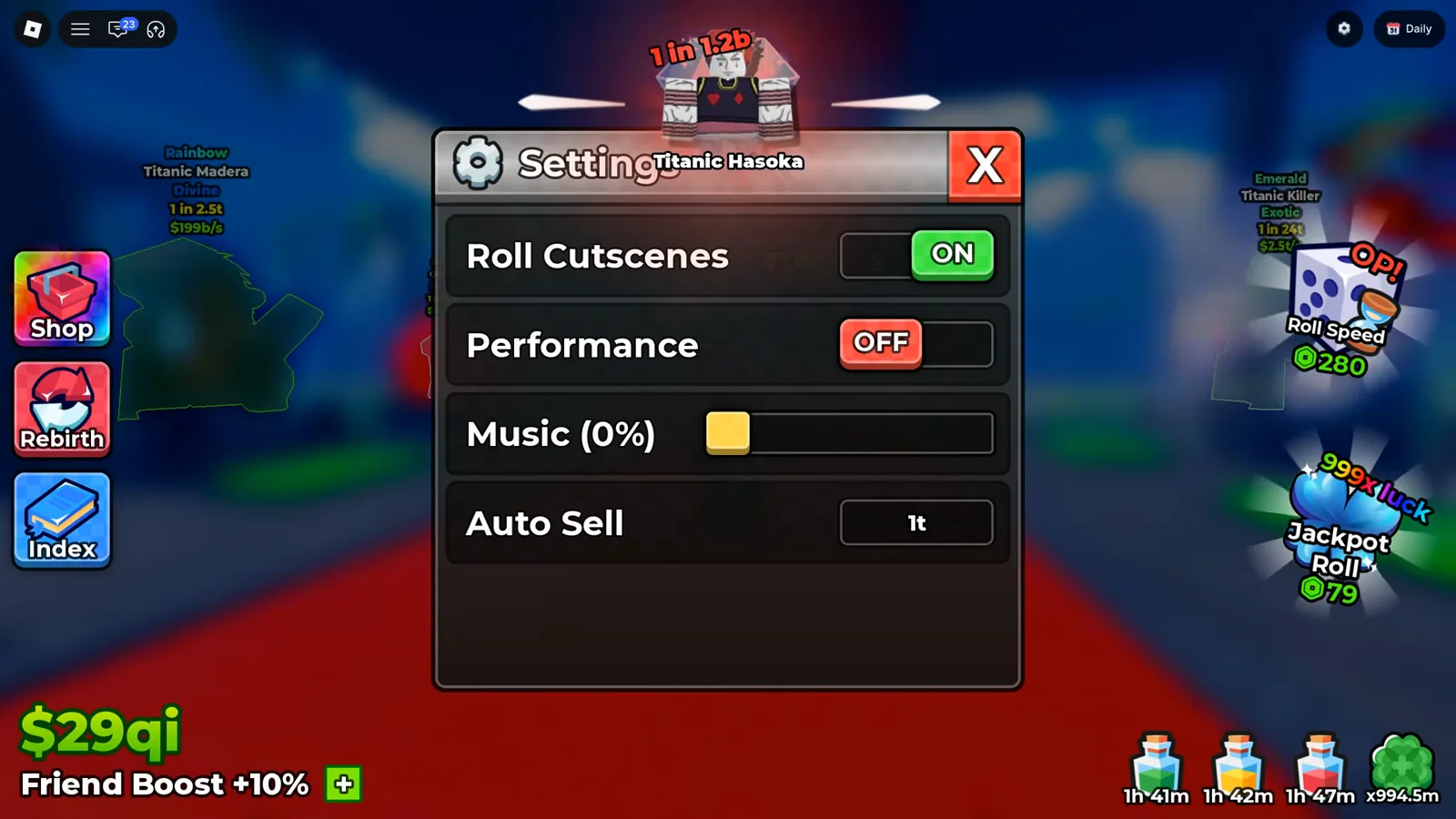
Nothing else is on this panel. No resolution, no keybinds, no graphics presets.
Watch the Settings panel at 0:13
Reading the four rows off that frame:
| Row | Control as printed | Value in our frame |
|---|---|---|
| Roll Cutscenes | two-position toggle | ON (green) |
| Performance | two-position toggle | OFF (red) |
| Music (0%) | slider, with the percentage printed in the label itself | handle at the far left |
| Auto Sell | a boxed value field | 1t |
How Do You Turn Off the Roll Animation?
Roll Cutscenes. Set that row to OFF. It is the only control on the panel that touches what happens on screen when a roll lands.
That answer is recent, and the footage says so twice. In a guide published on 13 September the creator works out loud: “this animation’s going to be really annoying, so I’m going to be showing you how to turn that off” — and then, having looked: “unfortunately I just checked, you actually can’t turn that off … there’s literally no settings for what you can go to to turn that off.” Three days later, in the recording we filmed from, the row is sitting on screen.
The same recording also flags two of these rows as new. At 0:00 the creator is reading the HUD and stops on the panel: “look what they added … a mute music button and this auto sell feature that you can just instantly — look at that. That’s absolutely amazing.” Those are the Music slider and the Auto Sell field, and they are the two rows on the panel that were not there earlier in the month according to the person filming them.
What Does the Auto Sell Field Do?
It is a threshold, not a switch — which is the useful thing about the frame. The field holds 1t on this account, and the creator’s own description of the mechanic is that it clears everything under a figure you set: “it automatically sells everything that’s under 101 trillion. You don’t have to actually go to the sell place.”
Two readings of that, and we can only support the first:
- Supported by the frame: the row exists, it holds a magnitude value, and the value is editable rather than fixed, because a field of that shape is a field you type into.
- Not supported by any frame: what the game actually does with it. Nothing in this recording shows a unit being auto-sold, shows the threshold being changed from
1t, shows whether units above the figure are left placed or held in the Backpack, or shows whether the sweep runs continuously or on a beat.
The reason that gap matters is that auto-sell is the one setting on this panel that can cost you a unit. That is a different control from the one with the similar name. Our afk farming guide documents a selling-NPC menu whose third option reads Edit auto sell settings, and the frames there show it working by rarity, deciding which units a sell sweep picks up. This row works by odds magnitude. Two screens, two mechanisms, one shared word — and both can cost you a unit, so set each with the figure you would regret losing already in mind. The stall panel’s own sentence — Auto sell units below a 1 in [ ] chance — is read frame by frame, with its value being typed character by character, on the selling units page, along with why we cannot prove the two rows share one stored value.
Watch the Auto Sell row at 0:13
What Are the Two Skip Confirmation Dialogs?
They are not on the Settings panel, but they are the only other place the client asks you to configure behaviour, and both appear in the same recording.
The first belongs to trait rerolls. The Traits panel prints its own warning — rerolling a trait will replace any current trait — and when an auto-roll lands on a trait you have marked to skip, this goes up:
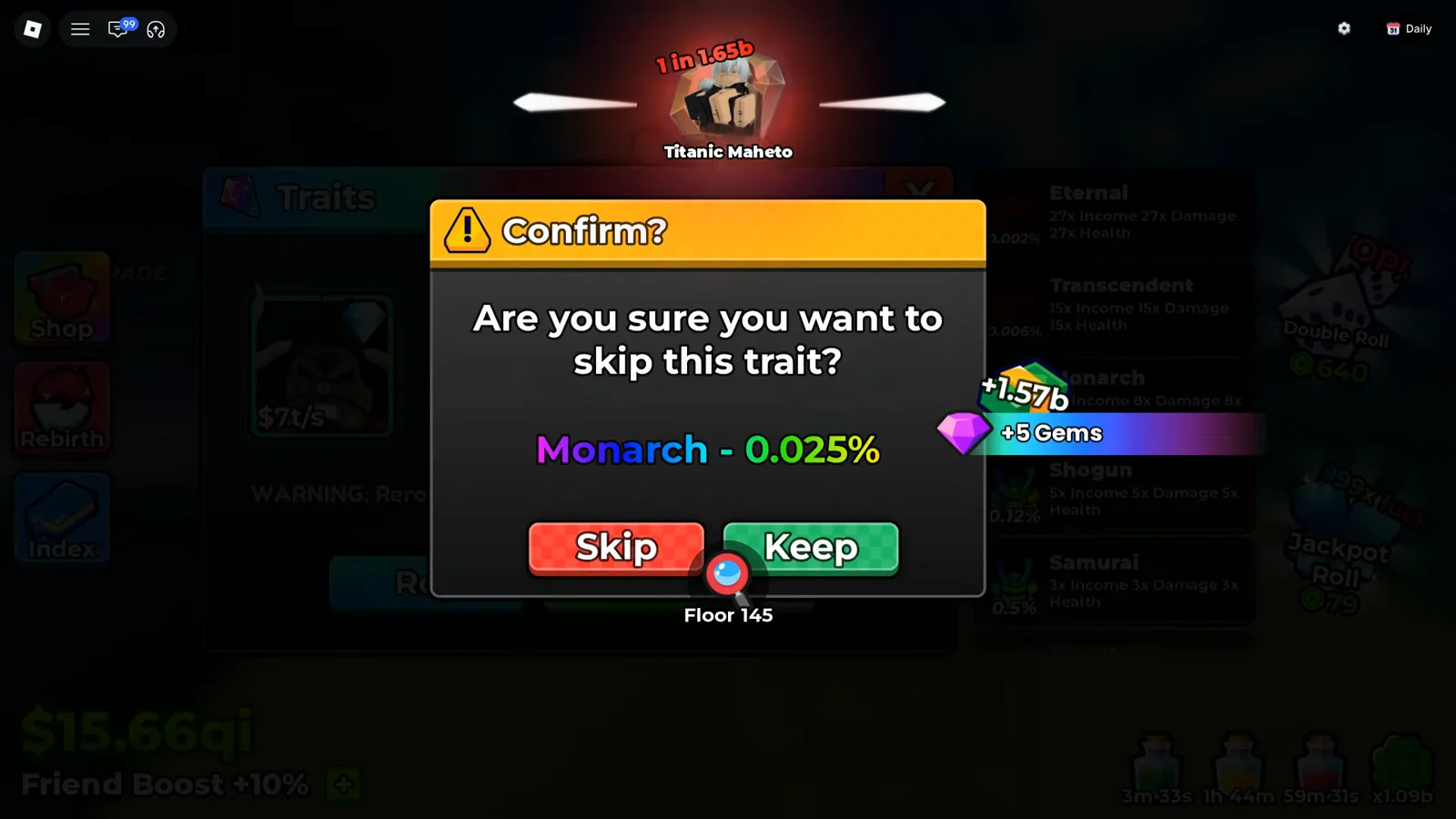
The chance is printed in the dialog itself. You are not meant to have to look it up.
Watch the trait skip dialog at 16:06
That number is the interesting part. Monarch - 0.025% is the client stating the odds of the trait this roll produced, in the same breath as it asks whether you want to keep it — which is the closest thing the game offers to the per-tier chances that our reroll priority page has to work around. The ladder behind the dialog lists the trait tiers this site already transcribes on the best traits page.
The second is its grade equivalent, and it is a grid rather than a single prompt:
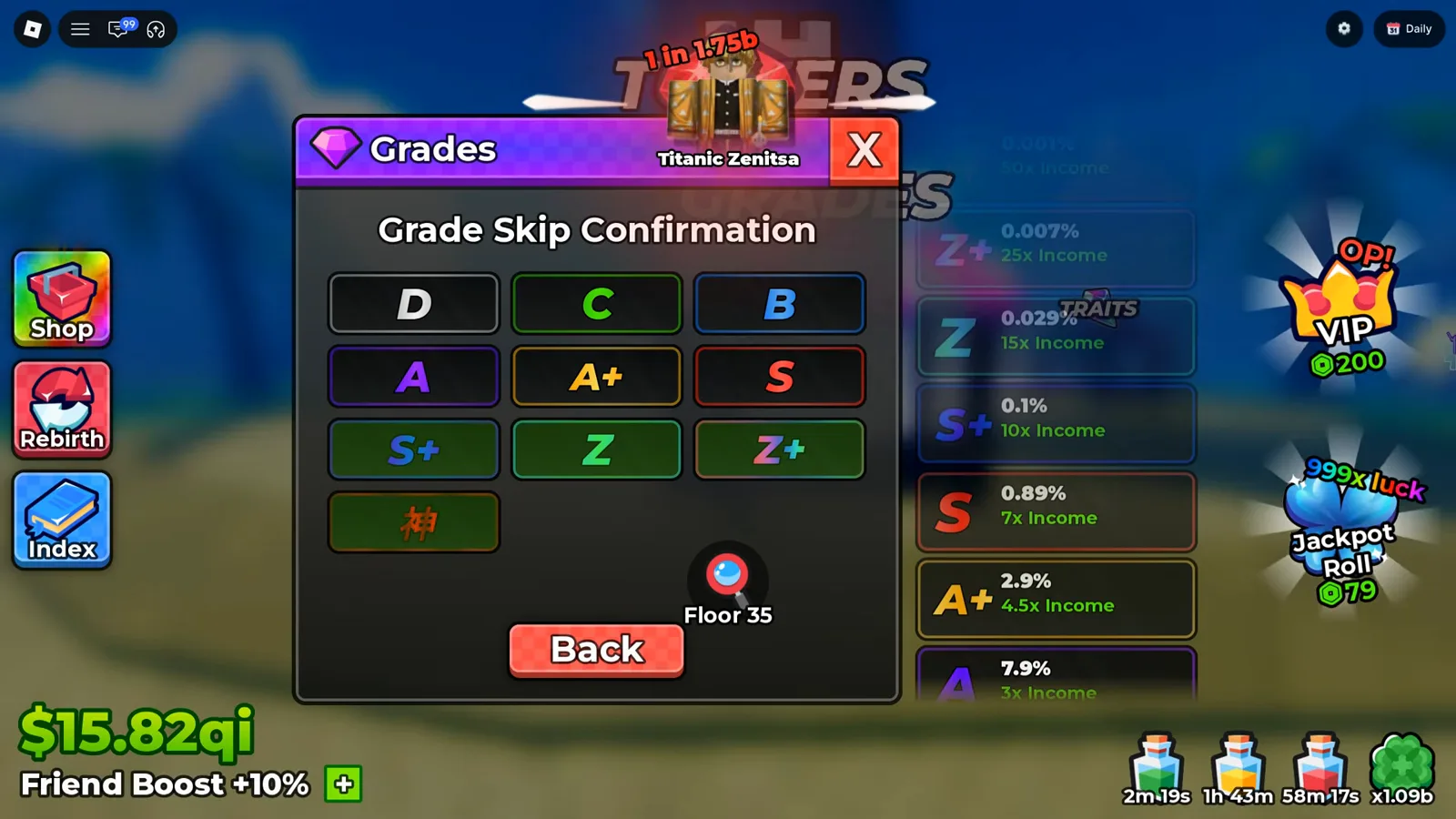
Ten buttons are on this grid, and two of them — Z and Z+ — are filled green while the other eight sit dark. The screen does not say which state is the setting.
Watch the grade skip grid at 17:06
The grid prints ten buttons in this frame — D, C, B; A, A+, S; S+, Z, Z+; and a red Japanese kanji character alone in a fourth row — above a red Back button. Z and Z+ carry a filled green background while the others sit dark inside coloured borders — and no frame says whether green means selected, available, or simply the tier the roll is currently on. The build on our Update 6 page prints the same grid with one more slot, an infinity symbol, which this capture does not contain; when that slot appeared is not something we can date. The grade ladder itself, with its per-tier figures, is on the grades page.
Where Does Auto Roll Get Its Stop Condition?
On the Traits panel, immediately to the right of the green Auto Roll button, there is a small gear button.
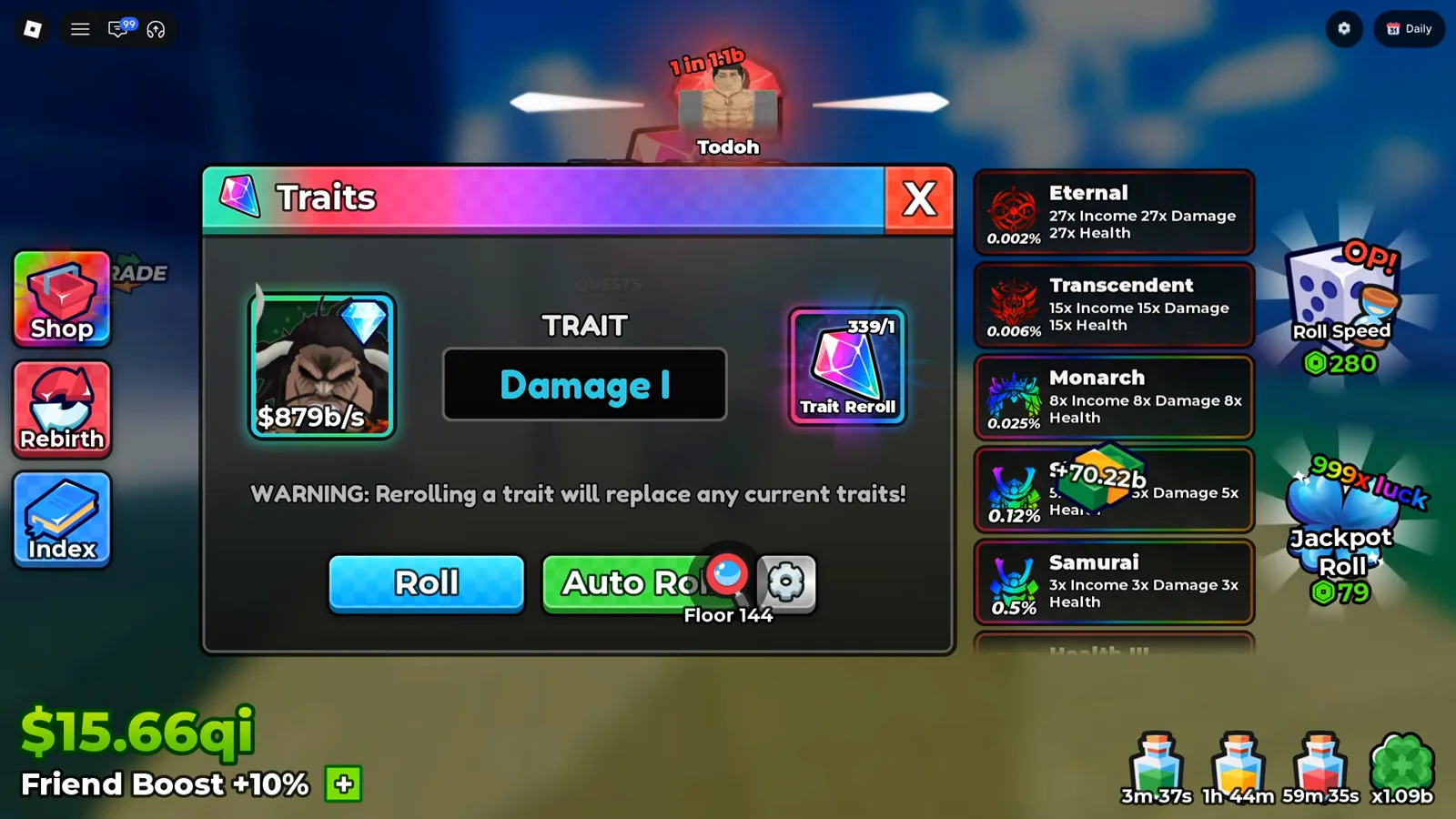
The panel’s own warning is the reason the setting exists at all.
Watch the Auto Roll gear at 16:02
The creator’s behaviour around it tells you what it is for even though he never clicks it: “we’re going to hit auto roll on, but we’re going to make it stop minimum once it gets to this next one” and later “we’re going to turn off everything prior to Z plus … this thing is not going to stop until A, we run out of gems or B, we hit Z plus.” That is a per-tier stop list being described, and the Grade Skip Confirmation grid above is the only screen in this recording shaped like one.
We are stopping there deliberately. No frame in any recording we have reviewed shows that gear button being pressed or its contents. Until one does, this page documents that the control exists and where it sits, and does not describe a menu nobody has filmed.
What Did We Deliberately Not Print?
- What Performance does. Labelled, filmed, unexplained. No frame or caption in this recording says what the toggle changes.
- What Roll Cutscenes removes. We have the row ON. We have no off-state frame.
- Any Auto Sell rule. Not the sweep interval, not the treatment of units above the threshold, not whether
1tis a floor, a default or a choice this player made. - What the green buttons on the grade grid mean, and what the cut-off column to its left holds.
- The contents of the gear beside Auto Roll — never opened on camera.
- Any Roblox client setting. Frame rate, volume outside the game’s own Music row, and chat visibility belong to the Roblox menu, which is not this game’s settings and not what this page is about.
If your client shows the Settings panel with a fifth row, the Roll Cutscenes toggle in its off state, or that Auto Roll gear opened, a dated screenshot through the contact page settles it and gets credited here.
For the rest of the systems these toggles touch, the beginner guide orders the first hour, live codes and group rewards cover the free-reward channels, and the update history tracks which patch put a row on this panel.
相關文章
guides
Anime Dice Update 7: Rebirth Upgrade Points, Third Base Floor and New Dice
Anime Dice UPD 7 read off frames: the developer's own patch notes, the 6-path Rebirth Stats panel, and a purchase confirmation. Checked 7 October 2026.
guides
Anime Dice Money: Where Cash Comes From, Read Frame by Frame
Anime Dice money read frame by frame: the cash counter's k-to-oc suffix ladder, the $/s income every unit card prints, and the breakdown no screen ever shows.
guides
Anime Dice Probability and Roll Odds: The 1 in N Screens
Anime Dice prints unit odds as 1 in N and trait odds as percentages, never as one drop table. Frame-by-frame readings plus the arithmetic the game leaves out.
這篇對你有幫助嗎?
感謝你的回饋!